Change scroll direction on Mac
The mouse you know from Windows is back on your Mac, side buttons and middle click included
On Windows, rolling the wheel towards you moves the page down, Ctrl + wheel zooms and the thumb buttons go back. On a Mac, the mouse and the trackpad share one scroll direction. WinPlug Mouse gives your mouse the Windows way and leaves the trackpad natural, with Ctrl + wheel zoom, side buttons, middle-click autoscroll and more.
Free 14-day trial$24 one-timemacOS 14 or later


A mouse on a Mac: what changes
Coming from Windows, this is where your mouse behaves differently on a Mac, and what WinPlug Mouse brings back.
| On a Mac | With WinPlug |
|---|---|
| Natural scrolling is one switch for the mouse and the trackpad. | The mouse scrolls like Windows, the trackpad stays natural. |
| Ctrl + wheel doesn’t zoom the page. | Ctrl + wheel zooms in and out, one step per notch. |
| The side buttons do nothing in most apps. | They go back and forward, out of the box. |
| A middle click never autoscrolls. | Middle-click a page and it follows your pointer. |
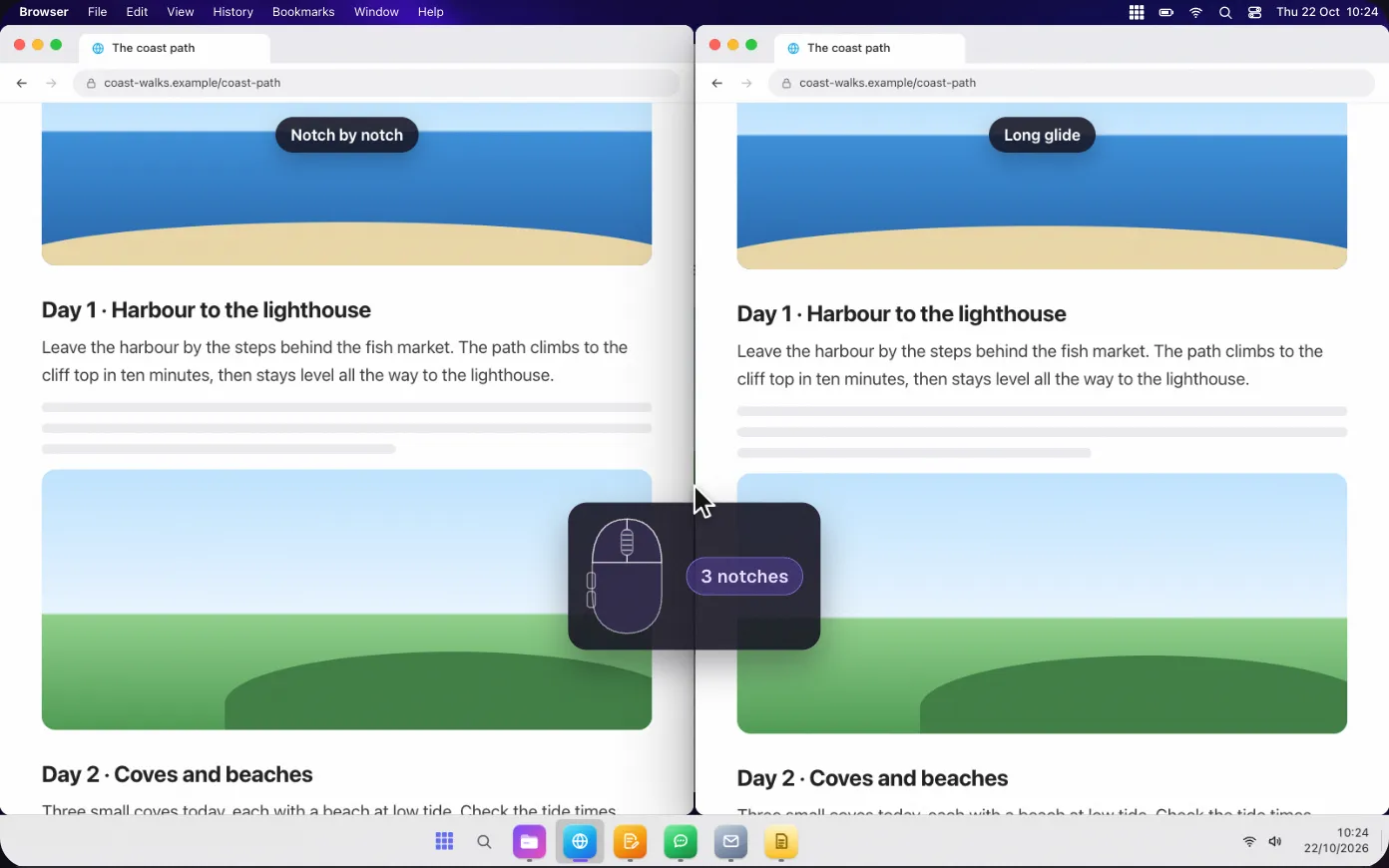
| The wheel speeds up and slows down on its own. | Every notch scrolls the same 3 lines, or glides if you prefer. |
| Dragging means holding the button all the way. | ClickLock holds it for you until the next click. |
Zoom with Ctrl and the scroll wheel on a Mac
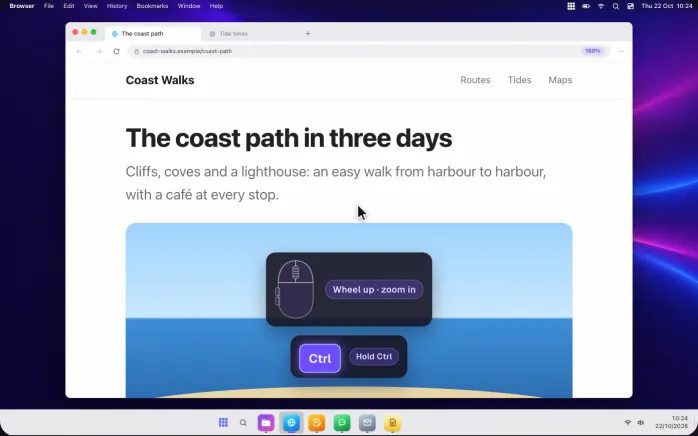
Hold Ctrl and turn the wheel: the app in front zooms in or out, one step per notch, wheel up to zoom in, as on Windows.
It works in browsers and in any app with a zoom in its View menu: WinPlug presses that menu item for you, whatever the app’s language.
It works out of the box, and Ctrl keeps its own job in terminals and code editors.
Reverse the mouse scroll direction, not the trackpad
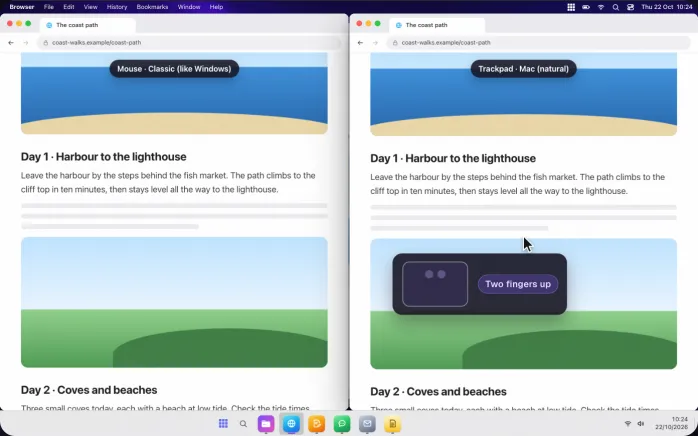
Turn on Let WinPlug handle the scroll wheel in Settings › Mouse & Scroll Wheel: your mouse scrolls like Windows, while two fingers on the trackpad keep the Mac’s natural way.
WinPlug changes what the wheel sends, not your Mac’s setting.
Horizontal scrolling can be reversed too.
Middle click autoscroll on a Mac
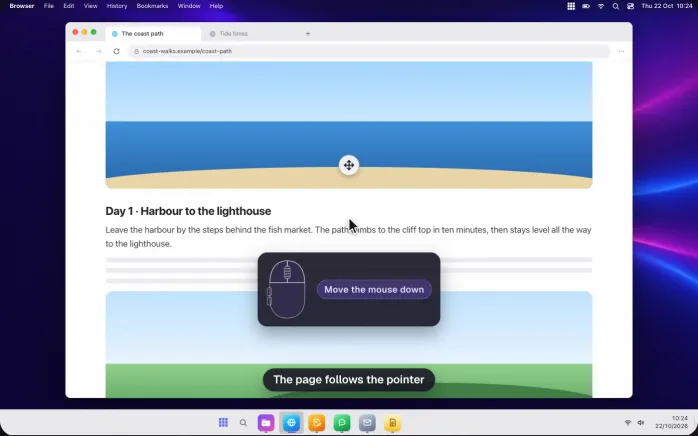
Turn on Autoscroll, like on Windows, then click the wheel on a page: a round badge with four arrows marks the spot, and the page scrolls towards the pointer, faster the further you move it, up, down or sideways.
Click again or press Esc to stop, or hold the wheel and drag to stop when you let go.
Links, tabs and buttons keep their own middle click.
Use the mouse side buttons on a Mac
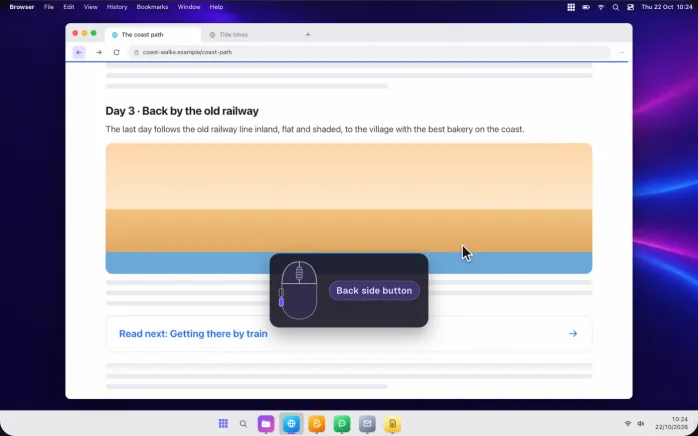
The two buttons under your thumb go back and forward in your browser and in any app with Back and Forward, out of the box.
In Settings you can give them, or the middle button, other jobs on a click, a double click or a long press: Mission Control, the next desktop, WinPlug Snap, play and pause, a keyboard shortcut…
Smooth scrolling on a Mac, or notch by notch
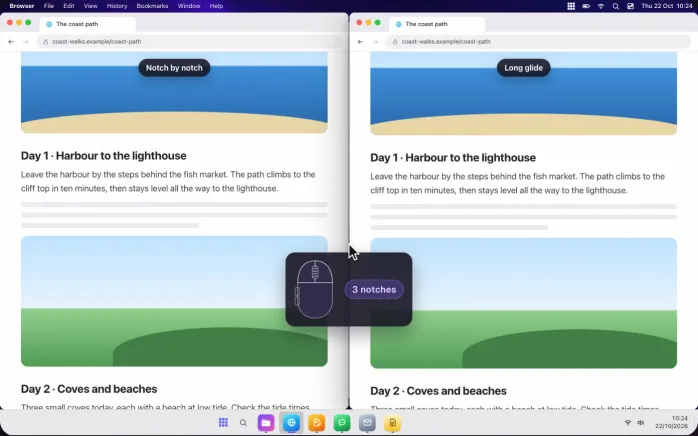
Once WinPlug handles the wheel, each notch moves the same three lines, the steady feel of Windows (from 1 to 20 lines).
Prefer it smooth?
Pick Smooth, Fluid or Long glide: each notch glides, quick notches add up, and you choose the distance in lines or pixels, the speed, and whether a fast spin scrolls further.
Hold a mouse button to switch desktops
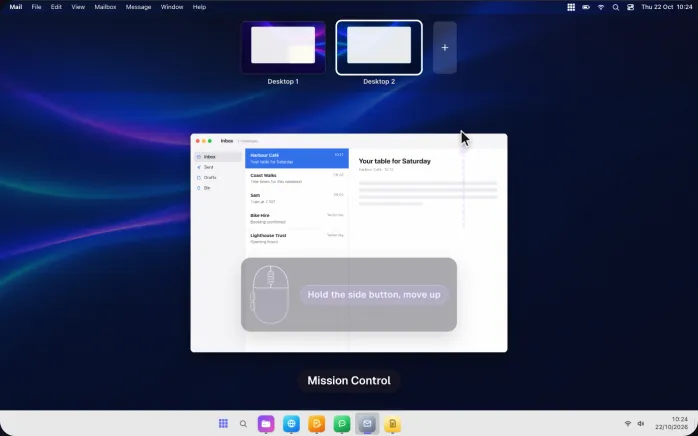
In Hold a button, choose Swipe gestures: hold a side button and move the mouse left or right for the previous or next desktop, up for Mission Control, down for the windows of the app.
Each direction can do something else, and a simple click still clicks.
Or choose Move the mouse to scroll: the pointer stays still and the page follows your hand.
ClickLock on a Mac, like on Windows
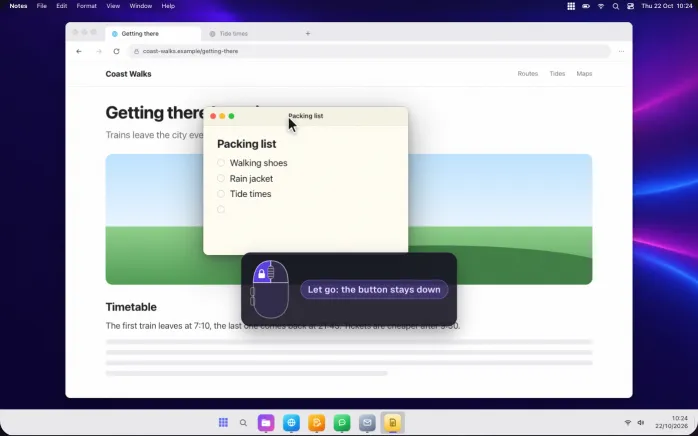
Turn on ClickLock, then hold the main button about a second without moving: let go and it stays down.
Move a window, select text or drag files without holding anything, then click to drop.
The hold time goes from 0.5 to 2.5 seconds.
Find the mouse pointer on a Mac with Ctrl
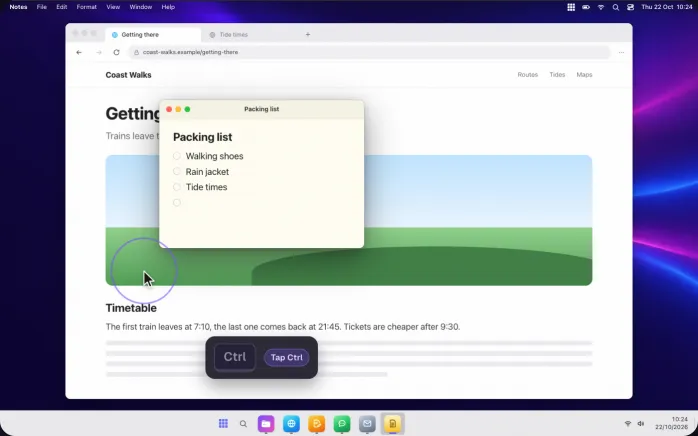
Turn on Show where the pointer is when I press Ctrl, then tap Ctrl on its own: a violet ring closes in on the pointer, on any screen.
With Hide the pointer while typing, it disappears at the first key you type and comes back as soon as you move the mouse, like on Windows.
And also…
Any button, any action
Give a button Mission Control, the desktop, WinPlug Snap, the volume or a shortcut, on a click, double click or long press.
Keys + wheel
Shift + wheel can scroll sideways, Option or Win + wheel faster or slower. Ctrl + wheel zooms.
Pointer acceleration
macOS, Windows (enhanced precision) or none at all, and a pointer speed for your mice.
One mouse, its own settings
A separate wheel, pointer speed and left-handed setting for each mouse you plug in.
Rules per app
Leave the mouse alone in one app, or give it its own wheel speed.
Left-handed
Swap the left and right buttons of your mice. The trackpad keeps its own.
Accidental double clicks
For a worn mouse that clicks twice: a second press within 60 ms is ignored.
Middle click on the taskbar
Middle-click an icon for a new window, or a preview to close that window.
Windows mouse shortcuts on your Mac
- Ctrlwheel
- Zoom in or out, one step per notch
- Back button
- Back
- Forward button
- Forward
- Middle click
- Autoscroll on a page
- Esc
- Stop autoscroll (or click)
- Holdside button
- Swipe gestures: desktops, Mission Control
- Ctrl
- Tap alone: show where the pointer is
- Shiftwheel
- Scroll sideways, if you choose it
On a Mac keyboard, Ctrl is the Control key, Alt is Option and Win is Command. Ctrl + wheel and the side buttons work out of the box; the rest is turned on in Settings › Mouse & Scroll Wheel.
See it on a real Mac
WinPlug Mouse is being filmed on a real MacBook with a five-button mouse, every click and notch shown on screen. Until then, the demo at the top of this page shows each feature as it works.
Mouse and scroll direction on Mac questions
How do I change the scroll direction on a Mac?
In System Settings, Natural scrolling (under Mouse or Trackpad) flips the direction, but for the mouse and the trackpad at once. To change only the mouse, turn on Let WinPlug handle the scroll wheel: the mouse scrolls like on Windows and the trackpad keeps its natural direction.
Can I reverse the scroll on my mouse but not the trackpad?
Yes. WinPlug gives the mouse and the trackpad a direction each: Classic (like Windows) or Mac (natural). It changes what the wheel sends, not your Mac’s setting, so turning it off puts everything back as it was.
How do I zoom with the mouse wheel on a Mac?
Hold Ctrl and turn the wheel: WinPlug zooms the app in front, one step per notch, in browsers and apps with a zoom. Without it, a Mac only magnifies the whole screen that way, and only if you turn that on in its Accessibility settings.
Do mouse side buttons work on a Mac?
With WinPlug they go back and forward out of the box, in browsers and apps with Back and Forward. You can also give them other actions, like Mission Control or the next desktop.
Is there middle click autoscroll on a Mac?
Not in macOS. Turn on Autoscroll, like on Windows, in WinPlug: click the wheel on a page and it scrolls towards the pointer until you click again or press Esc. Links and tabs keep their middle click.
How do I turn off mouse acceleration on a Mac?
In WinPlug, Pointer acceleration offers macOS, Windows (enhanced precision) or None (1:1), for your mice only. WinPlug keeps each mouse’s own values and puts them back when you choose macOS again, turn WinPlug off or quit. Recent versions of macOS also have a switch in their Mouse settings.
What if another app already handles my mouse?
Turn off Let WinPlug handle the scroll wheel, so the wheel is handled once. Ctrl + wheel and the side buttons have their own switches too, and each app can be left alone in Settings.
Does it work with any mouse?
Any USB or Bluetooth mouse; the side buttons need a mouse that has them. Each mouse can have its own wheel, speed and left-handed settings. An Apple mouse with a touch surface scrolls like the trackpad.
One license, every habit
WinPlug Mouse comes with 8 more modules: one license, $24 one-time at launch, for 2 Macs, with a free 14-day trial and no account.
- WinPlug TaskbarA real taskbar: every window one click away, previews on hover, a Start menu.
- WinPlug SnapWin + Shift + S to snip, an editor with arrows, blur and text, pinned captures.
- WinPlug KeyboardCtrl + C, Ctrl + V, Alt + F4, Home and End, on any keyboard.
- WinPlug SwitchAlt-Tab window by window, with live thumbnails, search and Peek.
- WinPlug ExplorerA file explorer that cuts and pastes, with an address bar and dual pane.
- WinPlug CaptureRecord the screen, a window or an area, then cut, style and export it in an editor.
- WinPlug ClipboardEverything you copy, kept in a history you can paste from.
- WinPlug LayoutWindows snapped to halves, quarters and thirds, with Win + arrows.